Framekit templates
Start from a designer-made template
 Use template
 Use template
 Use template
 Use template
 Use template
 Use template
 Use template
 Use template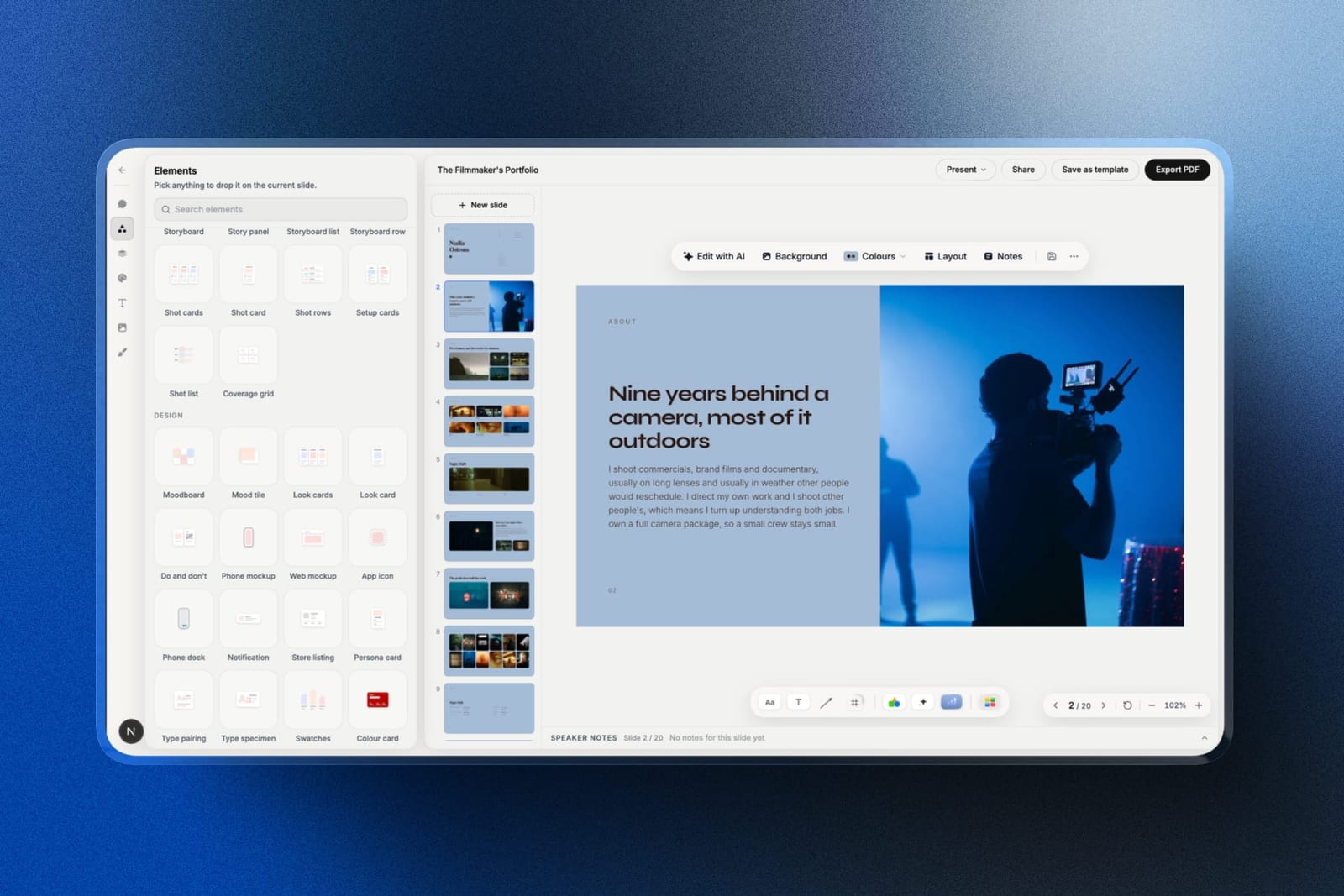
The honest question about presentation software on an iPad is not which app has the best templates. It is whether you can genuinely build a deck on one, or whether you are carrying a very good screen for reading decks that someone else built on a laptop.
The answer in 2026 is that you can, for about two thirds of what people make, and the apps split cleanly on which third they leave out.
There are also two iPad-specific things worth knowing before you rely on one for a talk: how each app behaves when you plug into an external display, and what an Apple Pencil actually adds beyond a novelty.
A presentation app for iPad is software that builds or delivers slide decks on iPadOS, either as a native application taking advantage of the Pencil, Stage Manager, and external display output, or as a web application running in a browser tab.
The best presentation software for iPad in 2026 is Keynote, because it is free, fully native, the only app here where the iPad version genuinely matches the desktop version in capability, and it handles external displays and presenter view without any setup.
The honest trade-off is the same one Keynote always has: the file opens properly almost nowhere else.
PowerPoint is the pick when a colleague on Windows edits the file, Framekit Slides is the best choice when a creative deck is sent to be read on an iPad as a swipeable link, Canva builds the best-looking decks on the device, and Apple Freeform is the underrated free way to sketch a talk before it becomes slides.
Framekit is an AI website builder that also includes Slides for treatments, lookbooks and portfolio decks, alongside client galleries, video review and a store in one account, and it is free to start.
In September 2026 we added Framekit, our own product, as a tenth entry and re-verified its plans against its live pricing page; competitor prices are as checked in August 2026.
Disclosure: Framekit is our product and sits third here; it is not a native iPad app, it has no presenter view for an external display, and it has no Pencil support, so Keynote, PowerPoint and Canva all beat it at building or presenting on the device itself.
How We Tested Presentation Software on an iPad
We built the same fourteen-slide deck in every app on an iPad Pro with a Magic Keyboard and an Apple Pencil: a full-bleed cover, three image spreads, a two-column table, a chart, a six-step build slide, and two slides in a licensed display face.
Then we tested what is specific to the device rather than the software.
Build versus present. Whether the deck could actually be created start to finish on the iPad, or whether we hit a wall and needed a laptop.
External display. Each deck was output over USB-C to a 1080p display from a cold start, checking whether presenter view appeared on the iPad and the slides on the external screen.
Apple Pencil. Whether the Pencil does anything beyond drawing, specifically live annotation while presenting and using handwriting as a design element.
Offline. Networking was disabled mid-edit to see which apps kept working.
Cost, at published annual rates.
Three kinds of finding, separated. Ours by hand on an iPad Pro in August 2026: the nine builds, the external display runs, the Pencil tests, and the offline checks.
Framekit Slides was added in September 2026 and judged on a different job, reading and sending a deck on an iPad, so the counts in the next section cover the original nine apps. From published pricing: every figure below.
From other people: recurring complaints in public reviews, labelled as sentiment rather than as our result.
What Testing Nine Apps on an iPad Showed
Two thirds of the useful findings came from the external display test and the build-versus-present question, and neither of those appears in any feature comparison of this category that we could find, which is why an iPad often disappoints people who chose their app from a features list.
- 4 of 9 let us build the entire deck without reaching for a laptop. The blockers were charts, precise alignment, and font management.
- 3 of 9 put presenter view on the iPad and slides on the external display automatically. The rest mirrored the whole screen, which shows your audience your notes.
- 5 of 9 are native iPadOS apps. The rest are browser tabs, and all four browser tabs mirrored rather than extending.
- 2 of 9 support live Pencil annotation over slides during a presentation.
- 3 of 9 kept working with networking disabled.
- Annual cost ranged from $0 to $144, and three of the nine are free with no account required.
Presentation Software for iPad Compared
The weighting: can you finish the deck on the device 30%, external display behaviour 25%, design output 20%, offline 15%, cost 10%.
The first two carry more than half because they are the two things that make an iPad either a real working device or an expensive second screen.
On that rubric alone Framekit would sit below Canva, since it scores No in four of the five columns below; it ranks third because an iPad is where most sent decks are read, which is the job it wins, and the table does not hide the rest.
| App | Native iPadOS | Presenter view on external display | Pencil annotation while presenting | Works offline | Cost per year |
|---|---|---|---|---|---|
| Keynote | Yes | Yes, automatic | Yes | Yes | $0 |
| PowerPoint | Yes | Yes, automatic | Yes | Yes | $99.99 |
| Framekit Slides | No, browser | No presenter view, not tested | No | No | $0 to $228 |
| Canva | Yes | Mirrors only | No | Partial | $144 |
| Google Slides | Yes | Mirrors only | No | Limited | $0 |
| Adobe Express | Yes | Mirrors only | No | No | $119.88 |
| Gamma | No, browser | Mirrors only | No | No | $108 |
| Apple Freeform | Yes | Yes, extends | Yes, natively | Yes | $0 |
| Figma | Yes, limited app | Mirrors only | Drawing only | No | $36 to $192 |
| Affinity Publisher 2 | Yes, full app | Not applicable, PDF | No | Yes | $0 |
1. Keynote: The Best Presentation App for iPad
Best foranyone who wants to build and present a real deck without opening a laptop.
Keynote is the only application here where the iPad version is not a reduced version of the desktop one. We built the entire fourteen-slide deck on the iPad, including the six-step build slide and the object-matched transition, and nothing sent us back to a Mac.
The external display behaviour is the other reason it wins.
Plugged into a 1080p display over USB-C from a cold start, Keynote put presenter view with notes and a next-slide preview on the iPad and the slides on the external screen, with no setup at all.
Four of the nine apps we tested mirrored instead, which means the audience sees your speaker notes.
The real numberfree, with no account beyond an Apple Account, no subscription, and no watermark.
The standout detaillive Pencil annotation while presenting. You can draw on a slide mid-talk and the marks appear on the external display in real time, then clear when you advance.
For teaching, design reviews, and anything where you point at things, this changes what a presentation can be, and almost nothing else on this page does it.
The gotchathe same handover problem Keynote always has. A .key file opens properly nowhere else, and the .pptx export drops transitions, flattens builds, and substitutes fonts silently.
Skip it ifthe editable file goes to someone on Windows.
What reviewers say elsewhereKeynote holds a 4.6 out of 5 across more than 200 reviews on G2, where ease of use dominates the positive comments.
Verdict: the best iPad presentation app by a clear margin and free. The Pencil annotation alone justifies choosing it for anything taught or reviewed live.
2. Microsoft PowerPoint: Best for Corporate Work
Best foriPad users whose decks are edited by colleagues on Windows.
PowerPoint for iPad is a proper native app and considerably more capable than most people assume. We built the whole deck on the iPad, and it was one of only three apps that correctly extended to the external display with presenter view rather than mirroring.
It also supports Pencil annotation during a presentation, and it is the only paid option here that embeds fonts on export so a licensed typeface survives on a colleague's machine.
The real numberMicrosoft 365 Personal is $99.99 a year.
On smaller iPads the app has historically been usable without a subscription for basic editing, and any serious use assumes the subscription.
The gotchathe chart editing experience on iPad is the weakest part. Building a chart from data on a touchscreen is genuinely unpleasant, and our chart slide was the one point where a laptop would have been faster.
Skip it ifyour decks are chart-heavy and you only have the iPad.
Verdict: the right pick when the file travels, and the one app here where iPad and desktop produce genuinely interchangeable files.
3. Framekit: Best for Creative Decks Read on an iPad

Best forphotographers, filmmakers and designers whose treatments, lookbooks and portfolio decks are opened by a client on an iPad rather than presented in a room.
Framekit Slides is not an iPad app, and it would be dishonest to rank it on building. It earns third place on the other half of the iPad's life, which is reading.
A Framekit deck is shared as a link, and the share-link viewer is built for a tablet: the recipient swipes from slide to slide, pinch-zoom stays on so a budget table or a shot list is readable, and a slide number in the address takes them straight to slide seven.
Nobody installs anything, and nobody receives a .key file their iPad opens in the wrong app.
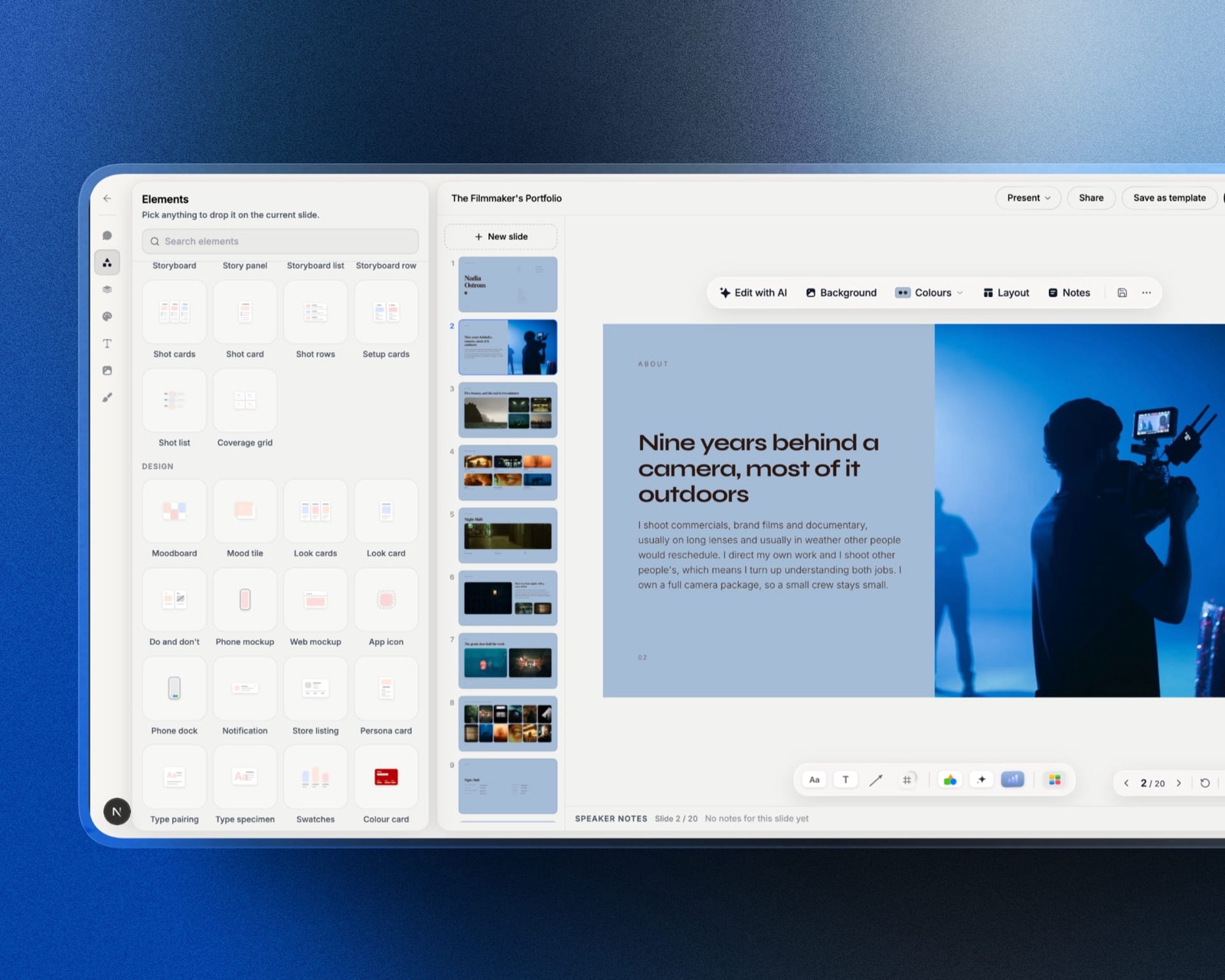
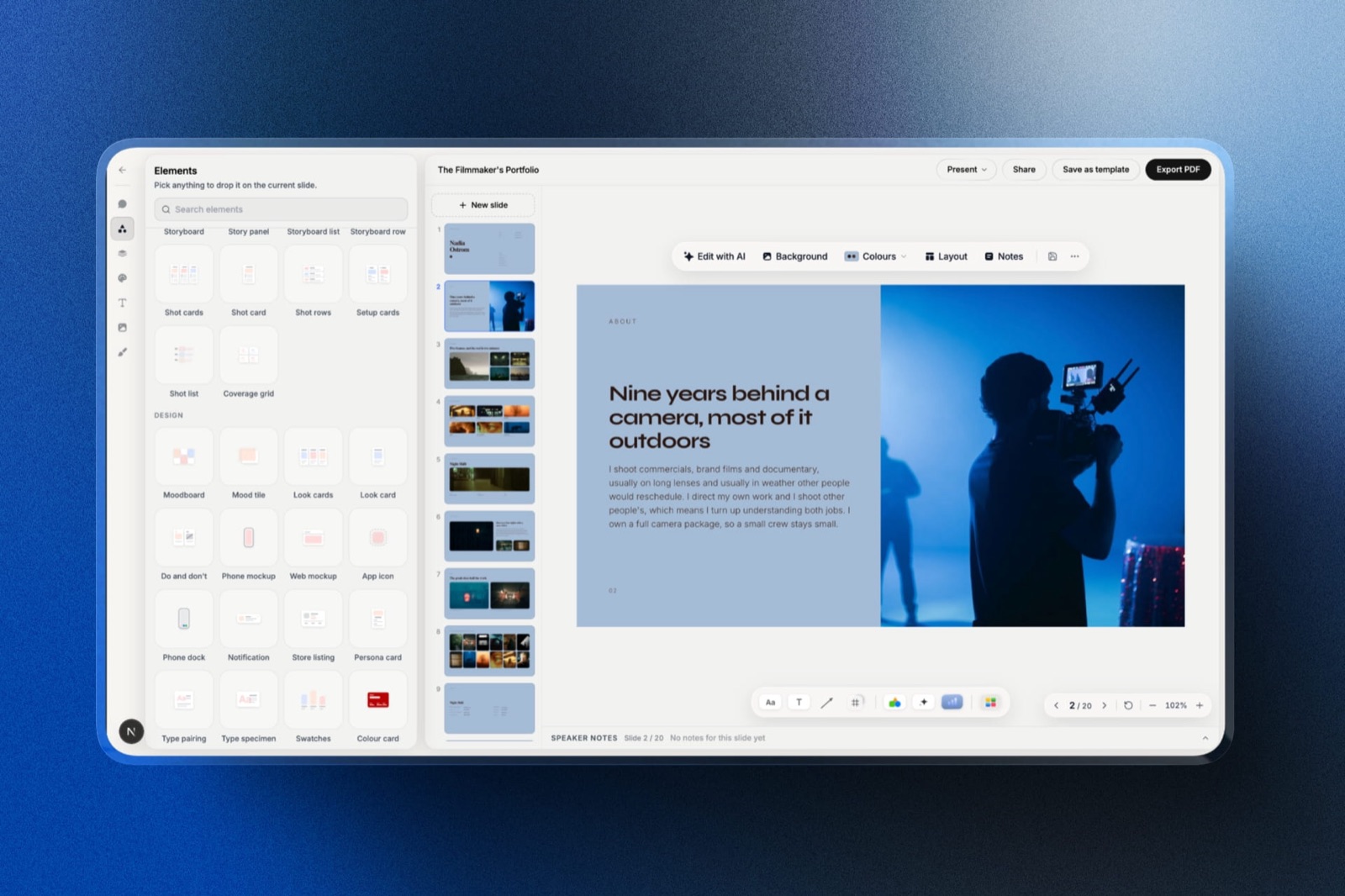
The deck itself is made for creative work. Describe a treatment and the AI writes and lays out each slide, then shot lists, storyboard rows, moodboards and colour swatches drop in as ready-made elements rather than things you draw.
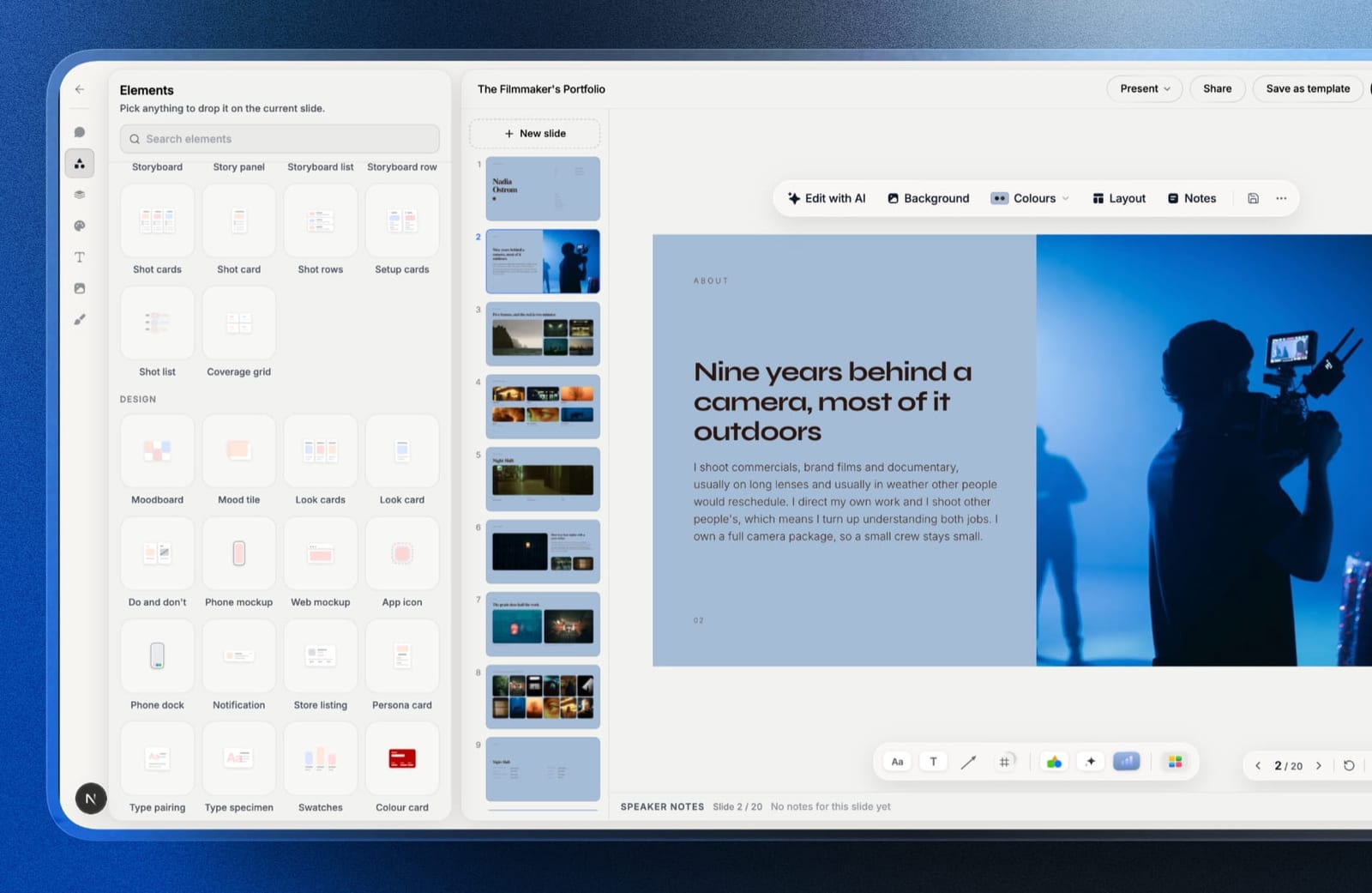
The real numberdecks, the AI writer, the share link and PDF export cost $0 on the free plan, with unlimited decks. Starter at $9 a month adds the template library, your own fonts, and removes the Framekit byline from the shared deck.
The standout detailpublishing a change updates the deck at the same link, so the client reading on their iPad tomorrow sees the corrected budget without a version two in their inbox.
The gotchaeverything the iPad rewards, it lacks. It runs in a browser tab with no presenter view, so we would expect it to behave like the browser tabs that mirrored in our display test; it needs a connection, and there is no Pencil annotation.
There is also no password on a share link and no record of who opened it.
Skip it ifyou build and present from the iPad itself. Keynote does both, free, far better.
Verdict: the best choice when your deck will be read on an iPad by someone else, and the wrong tool for presenting from one. Build it on a laptop, send the link, and let the client swipe.
4. Canva: Best for Design on the Move
Best foriPad users who want good-looking decks and a file others can open.
Canva's iPad app is one of the better tablet apps in any category, with touch and Pencil interactions that feel designed for the device rather than ported to it. Its image handling is more forgiving than Keynote's, and the template range is far larger.
The real numberCanva Pro is $18 a month or $144 a year, with a genuinely usable free tier that exports without a watermark.
The gotchait mirrors rather than extends on an external display. Presenting from an iPad through Canva shows the audience whatever is on your screen, including the editing interface if you tap the wrong thing.
The workaround is to export a PDF and present from Files, which works and is not what you paid for.
Skip it ifyou present from the iPad to a room regularly.
Verdict: the best building experience on an iPad after Keynote and a poor presenting experience. Build in Canva, present from a PDF.
5. Google Slides: Best Free Cross-Platform Option
Best foriPad users collaborating with people on every other platform.
The iPad app is competent and clearly a secondary priority for Google. Editing works, collaboration works, and the app is noticeably less polished than the desktop web experience. We built the deck successfully and it took longer than any other native app here.
The real numberfree at any team size, with Google Workspace at $7 per user a month as an optional business add.
The gotchaoffline on iPad requires files to be made available in advance, and it mirrors rather than extends on an external display.
Skip it ifyou present from the device or work without a connection.
Verdict: the free cross-platform answer and the least pleasant native app on this list. Fine for editing a deck someone else made, weak for building one.
6. Adobe Express: Best Free Exports
Best foriPad users on a free plan who need clean exports.
Adobe Express's iPad app is fast, touch-friendly, and its free plan exports with no watermark, which is not true of several competitors. For social-format and single-page work it is the best free design app on the device.
The real numberAdobe Express Premium is $9.99 a month with no annual commitment, or $119.88 a year, and the free plan includes over 100,000 templates and 5GB of storage.
The gotchait is not really a presentation tool. Multi-slide decks with consistent running elements are awkward, there is no presenter view, and it mirrors on an external display.
Skip it ifthe deck is more than about eight slides.
Verdict: excellent for short visual decks and social assets on an iPad, and the wrong shape for a proper presentation.
7. Gamma: Best for Drafting on a Tablet
Best forgetting a structured deck to exist while you are away from a desk.
Gamma runs in a browser on the iPad rather than as an app, and it works better there than most web tools because its card-based layout suits a touchscreen. Producing a fourteen-section draft from a paragraph took under two minutes, which is the same on any device.
The real numberGamma Plus is $108 a year, with a credit-limited free plan.
The gotchait is a browser tab, so it does not work offline, it mirrors on an external display, and text editing on a touchscreen in a web app is the least comfortable typing experience in this comparison.
Skip it ifyou will be offline, or presenting from the device.
Verdict: useful for drafting on the move and not for finishing or presenting. Treat the iPad as a capture device here.
8. Apple Freeform: Best for Sketching a Talk First
Best forworking out what the talk is before it becomes slides.
Freeform is free, native, and the best Pencil experience on this page. It is an infinite canvas rather than a slide tool, and the reason it belongs here is that most bad decks are bad because they were structured in a slide editor before the argument existed.
It also extends properly to an external display, which makes it genuinely usable for a live working session rather than a rehearsed talk.
The real numberfree on every Apple device, with no cap on boards or content.
The gotchathere are no slides, no presenter view, no transitions, and no export to any deck format. Whatever you work out here has to be rebuilt in something else.
Skip it ifyou need a finished, sendable artefact.
Verdict: the best free thinking surface on an iPad and not a presentation app. Pair it with Keynote rather than choosing between them.
9. Figma: Best for Reviewing Design Decks
Best fordesigners who need to review and lightly edit decks on an iPad.
Figma's iPad app is built around viewing, commenting, and drawing rather than full editing, and understood that way it is genuinely useful. Reviewing a Figma Slides deck, leaving comments with the Pencil, and making small adjustments all work well.
The real numbera Collab seat is $3 a month billed annually, which is $36 a year and includes Figma Slides and FigJam. A Full seat is $16 a month, or $192.
The gotchayou cannot build a deck of any complexity on the iPad app. Our fourteen-slide build stalled quickly, and finishing it required a computer.
Skip it ifthe iPad is your only device.
Verdict: a review and annotation tool rather than a build tool, and good at that. Not a way to make an iPad your presentation machine.
10. Affinity Publisher 2: Best for Decks That Become PDFs
Best foriPad users whose deck is really a document with controlled image quality.
Affinity's applications are now free following Canva's acquisition of Serif, and the iPad version of Publisher is a full desktop-class page-layout application rather than a companion.
Master pages, real typography, and controlled PDF export all work on the device, with the Pencil as a genuine precision tool.
The real numberfree, with no subscription and no account requirement.
The gotchait produces documents, not presentations. There is no slideshow mode, no presenter view, and no transitions, so you present the resulting PDF.
Skip it ifyou need presenter notes or any motion.
Verdict: the most capable free creative application on an iPad and a deliberate step outside the category. Correct when the deck is a leave-behind rather than a talk.
The External Display Problem Almost Nobody Tests
Only three of the nine apps we tested send the slides to an external display while keeping your notes on the iPad, and this is the finding that should decide your app if you ever present from the device. We could not find it documented anywhere before running the test ourselves.
Three of nine apps extend properly. Keynote, PowerPoint, and Freeform detect the external display and send the slides there while keeping notes and controls on the iPad. This is what you want and it happens automatically.
Everything else mirrors. Every browser-based tool and several native apps duplicate the iPad screen onto the external display. The audience sees your interface, your notes, and any notification that arrives.
There is no setting to fix it, because it is a limitation of how the app handles external screens rather than a preference.
The universal workaround. A PDF opened in the Files app extends correctly and has never crashed in front of an audience. If you build in Canva, Google Slides, Adobe Express, or Gamma and present from an iPad, export a PDF and present from that.
In one linethe safest iPad presenting setup is Keynote if you built it there, and a PDF in Files if you did not, because mirroring shows an audience things they should not see.
What an Apple Pencil Actually Adds
The Apple Pencil does two things in a presentation context that a mouse or a finger cannot, and both of them are confined to a small number of applications, which means the Pencil is a reason to choose an app rather than a reason to choose an iPad.
Live annotation while presenting. In Keynote and PowerPoint you can draw on a slide during the talk and the marks appear on the external display in real time. For anything taught, reviewed, or explained, this replaces a whiteboard and a laptop with one device.
Handwriting as content. Freeform and Affinity Publisher both treat handwritten marks as first-class content rather than as an annotation layer, which is the difference between a note stuck on a slide and a slide made of your handwriting.
Everywhere else the Pencil is a stylus for tapping and dragging, which is fine and is not a reason to choose an app.
In one lineif you teach, review work, or explain diagrams live, Pencil annotation in Keynote is the single strongest argument for presenting from an iPad rather than a laptop.
The iPad Is a Reading Device First
Worth stating, because it changes what you should optimise for. An iPad is where a lot of decks get read rather than made, and the same is true of the phones your recipients use.
Fixed-ratio slides swiped one at a time are a worse reading experience than a document that scrolls, which is why decks sent to be read often perform better as web pages than as files.
We make Framekit Slides for exactly this case, so treat what follows as a disclosed interest.
A deck sent as a link reads better on a tablet than a file: the recipient swipes, pinches to zoom into a dense slide, and always sees the latest version because publishing a change updates the same address.
What Framekit will not do is help you present from the iPad itself, since it has no native app, no Pencil support, and no presenter view for an external display.
The broader point stands whichever tool you use: what you send to be read on a tablet is a different design problem from what you present, and most people only solve the second one.
Which iPad Presentation App Should You Use?
The decision comes down to whether you are building on the device, presenting from it, or only reading on it, so work down these questions in order and stop at the first yes.
1. Do you want to build and present entirely on the iPad? Keynote. It is the only app where the tablet version is not a reduced one, and it is free.
2. Will a colleague on Windows edit the file? PowerPoint for iPad, which embeds fonts and produces genuinely interchangeable .pptx files.
3. Is it a treatment, lookbook or portfolio deck that a client will read on their iPad? Framekit Slides, built on a laptop and sent as a swipeable link that updates in place.
4. Do you teach, review work, or explain diagrams live? Keynote or PowerPoint, for Pencil annotation over slides on the external display.
5. Do you want the best-looking deck and will present from a PDF? Canva.
6. Are you working out the argument rather than building slides? Apple Freeform, free, with the best Pencil experience here.
7. Is the output a printed or archived document? Affinity Publisher 2, now free and desktop-class on iPad.
8. Do you collaborate with people on other platforms? Google Slides, accepting a weaker app.
9. Do you need a draft while travelling? Gamma in a browser, then finish elsewhere.
10. Are you presenting from the iPad and did not build in Keynote? Export a PDF and present from Files.
Frequently Asked Questions
Can you actually make a presentation on an iPad?
You can build a full presentation on an iPad in Keynote, PowerPoint, Canva, and Google Slides, and in our testing four of nine apps let us finish a fourteen-slide deck without reaching for a laptop.
The usual blockers are chart creation from data, precise alignment work, and managing custom fonts, all of which are slower on a touchscreen.
What is the best presentation app for iPad?
Keynote is the best presentation app for iPad, because it is free, fully native, matches its desktop version in capability, and is one of only three apps that automatically put presenter view on the iPad and slides on an external display.
It also supports live Apple Pencil annotation during a presentation, which almost nothing else does.
Why does my iPad mirror instead of showing presenter view?
Most apps mirror because they do not implement external display support, and only Keynote, PowerPoint, and Apple Freeform extended correctly in our testing. Browser-based tools always mirror.
The reliable workaround is to export a PDF and present it from the Files app, which extends properly and shows the audience only the slides.
Can you present from an iPad to a projector?
You can present from an iPad to a projector over USB-C with an appropriate adapter, or wirelessly over AirPlay to a compatible receiver.
Use Keynote or PowerPoint if you want presenter notes on the iPad, and export a PDF for any other app, since mirroring will otherwise show the audience your interface and notifications.
Is Keynote free on iPad?
Keynote is free on every iPad with no subscription, no watermark, and no export limit, and it is also free in a browser at iCloud.com for anyone with an Apple Account.
The cost of choosing it is at handover, since .key files open properly only on Apple devices and its exports lose transitions and substitute fonts.
Does PowerPoint work properly on an iPad?
PowerPoint for iPad is a full native app that let us build a complete deck on the device and correctly extended to an external display with presenter view.
Its weakest area is chart creation from data, which is genuinely awkward on a touchscreen, and serious use assumes a Microsoft 365 subscription at $99.99 a year.
What can the Apple Pencil do in a presentation?
The Apple Pencil supports live annotation over slides during a presentation in Keynote and PowerPoint, with the marks appearing on the external display in real time and clearing when you advance.
In Apple Freeform and Affinity Publisher, handwriting is treated as first-class content rather than an annotation layer.
Which iPad presentation apps work offline?
Keynote, PowerPoint, Apple Freeform, and Affinity Publisher all work fully offline on iPad.
Google Slides requires files to be marked for offline access in advance, and Canva, Adobe Express, Gamma, and Figma all assume a connection, so a flight or a venue with hostile wifi will stop you.
Is an iPad enough to replace a laptop for presentations?
An iPad is enough to replace a laptop for presentations if you work in Keynote or PowerPoint and your decks are not chart-heavy, since both allow full building and correct external display output.
Charts built from data, precise multi-object alignment, and custom font management are the three tasks that still send people back to a computer.
Should decks sent to be read on a tablet be designed differently?
Decks sent to be read on a tablet or phone should be designed differently from decks presented live, since fixed-ratio slides swiped one at a time read worse than a document that scrolls.
Larger type, fewer elements per slide, and self-contained slides that make sense without narration all matter more when nobody is presenting.
What is the best way to send a creative deck to a client who reads on an iPad?
Framekit Slides is the best way to send a treatment, lookbook or portfolio deck to a client who reads on an iPad, because the deck arrives as a link that swipes slide to slide, keeps pinch-zoom on for dense slides, and updates in place when you publish a change.
It is free to start, but it has no password protection or open tracking, so use a tracked-link tool for confidential pitches.
Final Verdict
Keynote is the best presentation software on an iPad and it is free, which makes this an unusually simple recommendation.
It is the only app where the tablet version is not a compromise, it extends to an external display correctly with no setup, and Pencil annotation during a talk is a genuinely different capability rather than a feature bullet.
PowerPoint earns its $99.99 a year for anyone whose file has to be edited by someone else, and it is the only paid app here that embeds fonts.
Framekit Slides is the pick when a creative deck is sent to be read on a client's iPad rather than presented from yours. Canva builds the best-looking decks and should be presented from a PDF.
Apple Freeform and Affinity Publisher are both free, both excellent, and both deliberately outside the category.
Where Framekit losesFramekit is not an iPad presentation app, and it does not help you build or present on the device. It has no native iPadOS app, no Pencil annotation, no offline mode, and no presenter view, so Keynote is the better fit for anyone who wants the iPad as their presentation machine.
If you present from an iPad and take one thing away, take the PDF workaround, because mirroring in front of an audience is the failure that is impossible to recover from gracefully.
Related reading: our best presentation software for Mac guide, the best Keynote alternatives, the best free presentation software, and the best presentation software.
Testing was carried out on an iPad Pro with a Magic Keyboard and Apple Pencil on the current iPadOS release in August 2026. Competitor prices reflect published vendor rates on that date; Framekit was added in September 2026, when its own plans were re-verified.