


Framekit for AI assistants
Build your website in Claude and ChatGPT.
Connect Framekit to your AI assistant and describe what you want. It designs the pages, writes the words and finds the photos, right on your real site.
Free to connect · Takes about a minute
Done. Your site is dark now, headings are set in an editorial serif, and the hero leads with your latest still. Want the same feel on your About page?
Open in Framekit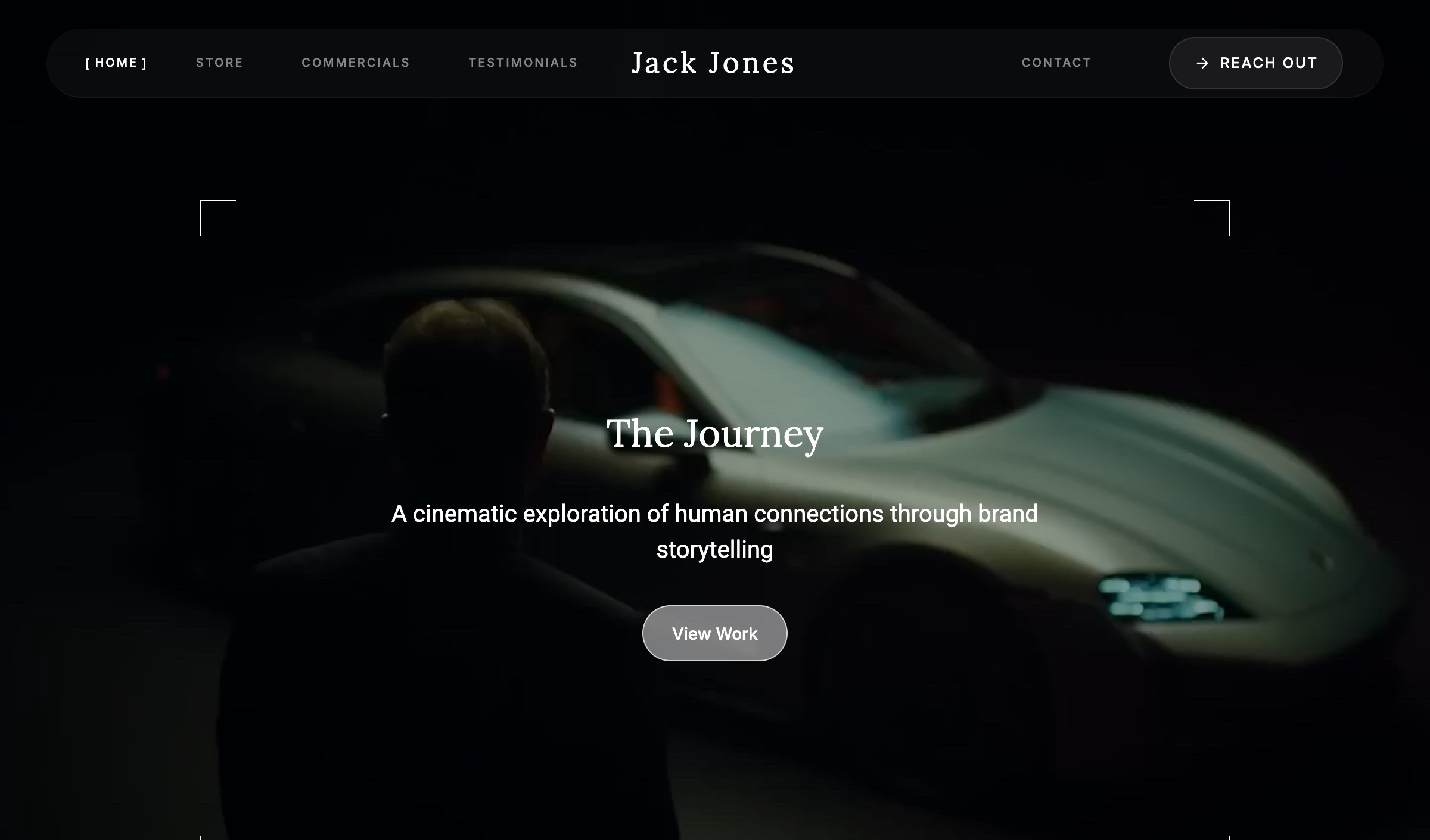
How it works
Your assistant, your site, three steps.
- 01
Connect
Add Framekit to Claude or ChatGPT with one link, then sign in to Framekit.
- 02
Ask
Describe what you want in plain words. Your assistant makes the changes on your real site.
- 03
Preview and publish
Your assistant sends you a preview link to see the changes before anyone else does. When you're happy, ask it to publish.
Pick your app
Works with the assistant you already use.
What it can do
Real changes, not just ideas.
Design whole pages
Describe a page and it builds every section and writes the words, in your fonts and colors.
Restyle the site
Change colors, fonts and the overall look, or apply a ready-made style.
Make decks
Pitch decks, proposals and treatments, slide by slide, with a link to share.
Find photos
Pull in stock photos that fit, or bring in images from a link you share.
Run your store
Add products, update prices, or import them from your old shop.
Take it back
Say “undo that” and the last round of changes comes back out.
Things to ask
Just say it, in your own words.
- “Make my homepage feel like a film poster: dark, moody, big serif type.”
- “Add a Pricing page with three packages and a button to book a call.”
- “Find warm, natural photos for my About page.”
- “Rewrite my services section so it sounds friendlier.”
- “Switch my fonts to something elegant and editorial.”
- “Add my three new presets to the store at $15 each.”
- “Look at my site and tell me what would make it better.”
- “Turn my treatment notes into a 12-slide pitch deck I can share.”
- “Undo that.”
Good to know
Questions
Do I need a Framekit site first?
No. Ask your assistant to start a new site and it makes one for you. If you already have sites, tell it which one to work on, or ask it to copy one as the start of a new site.
Can it make decks too?
Yes. Ask for a deck and it builds one slide by slide, from scratch or from one of Framekit's templates, and can work on the decks you already have. When it's ready, ask it to share the deck and it sends you the link.
Does it cost anything?
Connecting is free. Your assistant does the thinking on your own Claude or ChatGPT plan, and your site and publishing work the same as they always do on your Framekit plan.
Can I undo a change?
Yes. Ask your assistant to undo and the last round of changes it made comes back out.
What can my assistant see?
Only the sites on the Framekit account you sign in with, and only after you press Allow. To stop, remove Framekit from your assistant's connector settings or disconnect it in Framekit's Account settings.
Can it help with Google and my contact form?
Yes. Ask it to improve your SEO and it writes the titles and descriptions Google shows for your site and each page, plus the image people see when they share a link. It can also read what visitors sent through your forms.
How do I publish?
Tell your assistant to publish when you're happy with the preview, or open the site in Framekit and press Publish. Either way, your plan covers the same things it always does.
Can it translate my site?
Yes. Ask for any of Framekit's languages and your assistant translates the site itself, in whatever tone or wording you ask for. You can review and change any translation, and ask it to make the language visible to visitors when you're happy.
Can it write blog posts?
Yes. Ask for a post and it writes it as a draft on your site. Read it, ask for changes, and tell it to publish when it's ready. It can also edit or take down the posts you already have.
Can it connect my own domain?
Yes. Give it your domain and it connects it, then tells you the records to add where you bought the domain. Custom domains need a paid Framekit plan, as they do in the editor. It can also change your framekit.ai address, disconnect a domain or take your site offline, whenever you ask.
Can I see the changes before they go live?
Yes. Ask your assistant for a preview and it sends a private link showing your site exactly as visitors will see it. Only people you share the link with can open it, and your live site stays as it is until you publish.
If something's off
Troubleshooting
It says it couldn't connect
Check the link is exactly https://framekit.ai/mcp, sign in with the Framekit account your sites are on, and press Allow. Still failing? Remove Framekit from your assistant's connector settings and add it again.
It can't find my site
Your assistant sees only the sites on the Framekit account you signed in with. Ask it to list your sites. If it's the wrong account, disconnect Framekit and connect again with the right one.
It asks before every change
Your assistant checks with you before changes that replace what's on your site, such as rewriting a section. You can change how often it asks in its connector settings.
I can't see the changes on my live site
Changes save as a draft. Ask your assistant for a preview link to see them, and to publish when you're happy.
It worked before and now it doesn't
A connection ends after 90 days without use, or when you disconnect it in Framekit's Account settings. Connect again and you're back.
Still stuck? Email support@framekit.ai. How we handle your data when you connect an assistant: privacy policy.
Your Framekit link
Every app connects with this one link. Developers and AI agents can find the full setup, sign-in details and tool list in the developer guide.
https://framekit.ai/mcp