Framekit templates
Start from a designer-made template
 Use template
 Use template
 Use template
 Use template
 Use template
 Use template
 Use template
 Use template
Canva is very good, which is why the reasons people look for Canva alternatives for presentations are so specific. It is almost never "the tool is bad".
It is one of four things: the brand font you licensed cannot be uploaded without Pro, the stock image you picked came back watermarked in the export, the .pptx you sent a client came back with the spacing shifted, or a client said the words nobody wants to hear about a deck they just paid for, which is "did you make this in Canva?"
For creatives there is a fifth reason underneath the four. Canva is built to make everything from a bake-sale flyer to a quarterly report, so a director's treatment or a photographer's lookbook starts from the same general-purpose parts as everyone else's deck.
We took those complaints and tested thirteen alternatives against them, using the same twenty-slide studio deck in each.
This page was re-verified in September 2026, when we re-checked every price and added Framekit Slides to the ranking, reviewed on its published features rather than on that build.
Recognisability is a real cost. It is just an invisible one until the moment it is not.
A Canva alternative for presentations is a tool that builds and shares decks with comparable design quality but a different set of trade-offs, usually swapping Canva's enormous template library for tighter typographic control, better file fidelity, cheaper pricing, or output that does not look like everyone else's.
The best Canva alternative for presentations in 2026, if you are a filmmaker, photographer or designer, is Framekit Slides: it is made for treatments, lookbooks, shot lists, storyboards and moodboards rather than for every kind of document, and the deck sits in one account with your website, client galleries, video reviews and store.
What you give up is Canva's giant template and stock library and its real-time co-editing. Figma Slides is the pick for exact typographic control, Apple Keynote is the best free upgrade on a Mac, and Google Slides wins when clients must edit the file.
Full disclosure: Framekit is our own product and it sits at number one here, so read the ranking with that in mind. Its review sets out what the product ships rather than results from our deck build, we link to every rival, and the sub-score table below shows Framekit losing on library breadth and co-editing, the two things Canva does better than almost anyone.
How We Tested 14 Canva Alternatives
We built the same twenty-slide deck in each of the thirteen tested tools: eight images, a three-column pricing slide, one chart, speaker notes throughout, and two licensed brand fonts that we tried to use natively in each product.
Then we exported to PDF and .pptx, and opened the share link on an Android phone.
Each tool was scored against the four reasons people leave Canva, plus the two things Canva is genuinely best at and you risk losing: template breadth and speed of assembly.
Measured means we watched it happen in the product. Verified means it comes from the vendor's published pricing or documentation, checked in August 2026 and again in September, without being tested. Community sentiment is labelled where it appears and is never presented as our own result.
How the scores were set
We rank for the creative who uses Canva for client decks and keeps bending general-purpose templates into film and photo work, so being made for creative decks is the first criterion, followed by brand fonts, distinctiveness, library breadth, co-editing and export.
That first criterion is the one Framekit wins most clearly, which is exactly why we publish the rest: the ratings are editorial judgements across all six, not a formula, and the five tools most readers shortlist are broken out here.
Weight library breadth and co-editing first instead, as a team making social posts and decks together should, and Canva wins this list outright.
| Tool | Made for creative decks | Brand fonts | Distinctiveness | Library breadth | Co-editing | Export |
|---|---|---|---|---|---|---|
| Framekit | 10 | 8 | 8 | 4 | 4 | 6 |
| Figma Slides | 6 | 10 | 10 | 5 | 8 | 4 |
| Apple Keynote | 5 | 10 | 9 | 5 | 5 | 8 |
| Google Slides | 3 | 3 | 5 | 5 | 10 | 9 |
| Gamma | 5 | 4 | 5 | 6 | 5 | 6 |
Canva itself would take a 10 on library breadth and a 9 on co-editing, higher than Framekit on both. If those two columns are your job, stay.
What the 14 Alternatives Showed
- 4 of 14 let you use a licensed brand font with no paid upgrade: Figma Slides, Keynote, PowerPoint desktop, and LibreOffice Impress. All four do it by using fonts installed on your machine.
- 0 of 14 free plans allow uploading a custom typeface to a hosted library, which is the same restriction Canva has. Framekit applies your own fonts from Starter at $84 a year.
- Framekit Slides has shot lists, shot cards, storyboard panels, look cards and moodboards as ready-made slide elements, alongside templates for treatments and lookbooks.
- 3 of 14 produce output that is genuinely hard to trace to a template library: Figma Slides, Keynote, and a manually built PowerPoint deck.
- 7 of 14 are cheaper per year than Canva Pro's $144: Framekit Starter, Prezi Standard and Slidebean at $84, Microsoft 365 Personal at $99.99, Gamma Plus at $108, Decktopus at $119.88 on annual billing, and Pitch Plus at about EUR 120.
- 4 of 14 cost nothing at all in a form usable for client work with no vendor mark: Google Slides, Keynote, PowerPoint for the web, and LibreOffice Impress. Framekit's free plan has unlimited decks and PDF export, but each free deck shows a "Made with Framekit" badge that paid plans remove.
- 1 of 14 has no free plan or free trial without a credit card: Beautiful.ai.
Quick Comparison: 14 Canva Alternatives for Presentations
Framekit leads for creative pitch work while scoring lowest of the top five on co-editing and library breadth, which is the honest price of a tool built for one kind of deck rather than every kind.
| Tool | Fixes which Canva complaint | Brand fonts free | Cheapest paid, per year | Rating |
|---|---|---|---|---|
| Framekit | Generalist templates for creative pitches | On paid plans | $84 | 9.3/10 |
| Figma Slides | Control and distinctiveness | Yes, local fonts | $192 | 9.1/10 |
| Apple Keynote | Distinctiveness, at no cost | Yes, local fonts | $0 | 9.0/10 |
| Google Slides | File fidelity and collaboration | No | $0 needed | 8.8/10 |
| Gamma | Speed and mobile reading | No | $108 | 8.6/10 |
| Microsoft PowerPoint | Export fidelity and offline | Yes, on desktop | $99.99 | 8.5/10 |
| Pitch | Team libraries and link control | On paid plans | About EUR 120 | 8.2/10 |
| Beautiful.ai | Automatic spacing | On paid plans | $144 | 7.6/10 |
| Visme | Charts and reports | On paid plans | $147 | 7.4/10 |
| LibreOffice Impress | Cost and independence | Yes, local fonts | $0 | 7.2/10 |
| Decktopus | Transparent credit pricing | On paid plans | $119.88 | 7.0/10 |
| Storydoc | Knowing who read it | On paid plans | $237.60 | 6.9/10 |
| Slidebean | Investor-deck structure | No | $84 | 6.7/10 |
| Prezi | A different format entirely | No | $84 | 6.4/10 |
Each figure here was taken from the vendor's own published plans, first in August 2026 and again in September. Pitch lists its prices in EUR rather than dollars.
The Four Canva Paywalls, and Who Removes Them
In one lineonly local-font tools remove the brand-typeface paywall, nothing removes the template-recognition problem except building the deck yourself, and export fidelity is fixed by staying closer to the .pptx format rather than further from it.
| The Canva complaint | What it costs on Canva | Alternatives that remove it |
|---|---|---|
| Custom brand font upload | Pro, $144 a year | Figma Slides, Keynote, PowerPoint desktop, LibreOffice Impress free; Framekit Starter at $84 |
| Watermarked premium stock | Pro, or swap every asset | Any tool with no premium asset tier: Slides, Keynote, Impress, Figma |
| .pptx export drift | Not purchasable; it is structural | PowerPoint, Google Slides, Keynote, LibreOffice Impress |
| Clients recognising the template | Not purchasable | Figma Slides, Keynote, a hand-built PowerPoint deck |
Run this on yourself. Open your last three Canva decks and check two things: whether you substituted your brand font, and whether any image carries a faint diagonal mark in the exported PDF.
If both are true on all three, you are already paying the Canva tax in quality rather than money, and $144 a year for Pro is the smaller of the two costs.
1. Framekit: Best Canva Alternative for Filmmakers, Photographers and Designers

Our rating: 9.3/10
Framekit is an AI website builder with a built-in Slides tool made for filmmakers, photographers and designers, and that narrow brief is the whole case for it here. Canva has to serve a bakery, a school and a bank with the same editor.
Framekit Slides only has to serve people who pitch visual work, so its templates are treatments, lookbooks, portfolio decks, campaign decks and pitch decks, and its element panel is full of things Canva users usually draw by hand.
The difference is clearest on a shot plan. In Canva it is usually a table you style yourself.
In Framekit Slides a shot list is an element you drop onto the slide, with shot cards and storyboard rows to sit under it, and a look card with swatches can go next to a moodboard on the following slide.
The AI will also write and lay out a whole slide from a line of description, and every part of what it produces stays editable by hand.
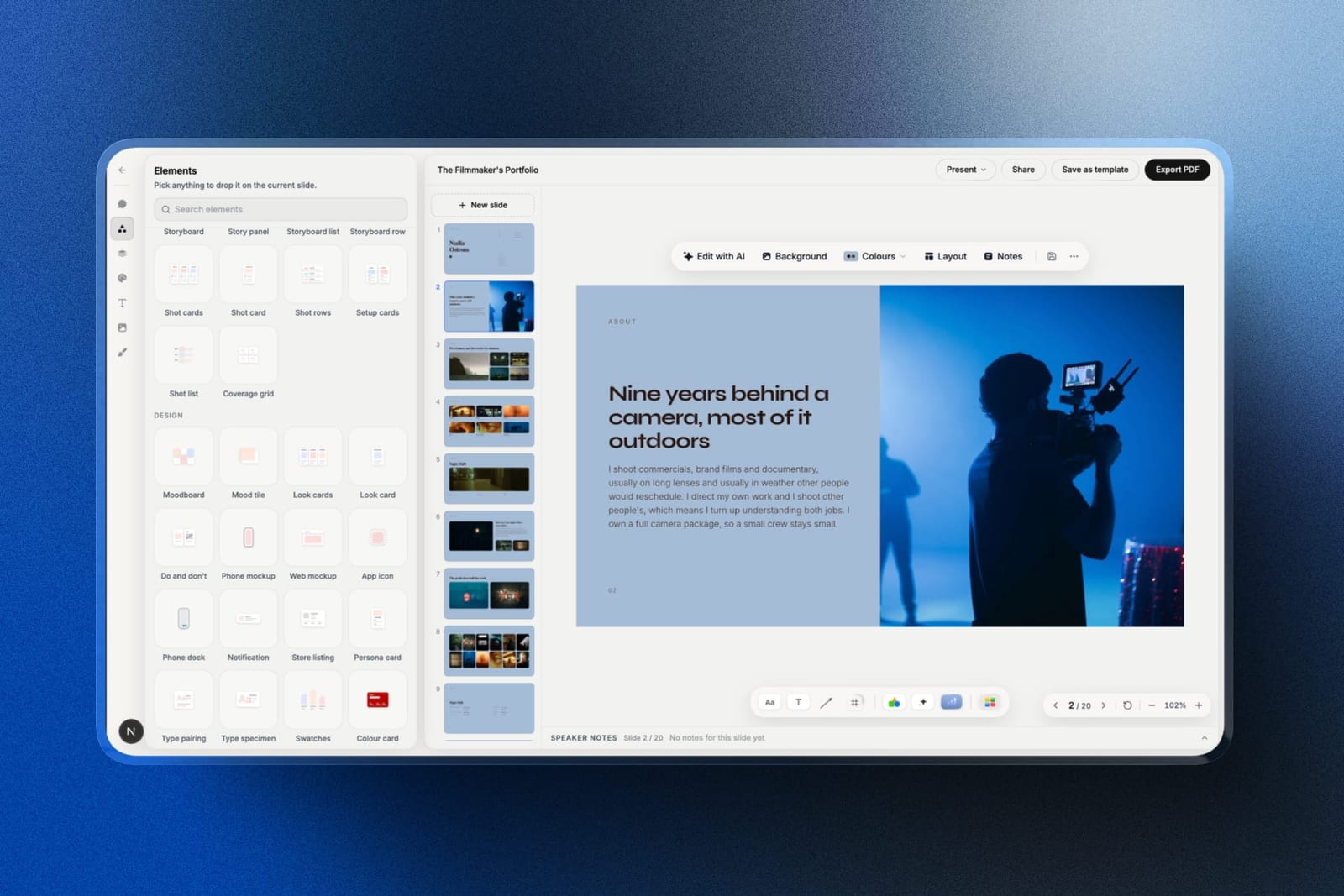
Best forDirectors, photographers and designers whose Canva decks are treatments, lookbooks and pitches, and who want those decks next to the site and deliveries clients already see.
The real numberStarter costs $7 a month on annual billing and brings your own fonts and colours to every slide, plus a 50GB storage pool that the deck shares with your website, client galleries and review cuts.
On Canva, the deck is the whole product; here it is one of five tools on the same bill.
The standout detailafter the pitch lands, nothing moves. The treatment that won the job, the gallery you deliver stills through, the timestamped review link for the cut and the store selling your LUTs all sit in one Framekit account.
Canva can make the deck, but the rest of that job happens elsewhere.
The gotchaCanva's library is enormous and Framekit's is not, both in templates and in stock imagery, so a non-film deck (a school fundraiser, a sales report) will start faster in Canva.
There is also no live multi-cursor co-editing and no commenting on decks, both of which Canva does well.
PowerPoint export arrives on Pro, turns slides into pictures and stops at 60 slides, so a client's team cannot edit the text afterwards.
Skip it ifyour decks are general business content, several people edit or comment on them inside the file, or you rely on per-viewer analytics, password-protected links or audience polls, none of which Framekit Slides has.
Verdict: for a creative who outgrew Canva's everything-for-everyone templates, Framekit Slides is the better home for the pitch deck, and it keeps the rest of the client relationship, from gallery delivery to cut review, in the same account. For anything that is not creative work, or any deck built by a team in real time, Canva still wins. Our film treatment software comparison covers the treatment side in more depth.
2. Figma Slides: Best for Exact Typographic Control
Our rating: 9.1/10
Figma Slides is the alternative for people whose complaint about Canva is control.
Every licensed font we had installed worked immediately, auto layout kept the three-column pricing slide intact when we lengthened the copy, and components meant a change to the title style propagated everywhere at once.
The output is also unrecognisable, which matters more than it sounds. Nothing in a Figma deck signals which library it came from, because there is no library - you built it.
Best forDesigners and studios who already use Figma and want decks nobody can trace to a template.
Key features:
- Auto layout and components, so a slide survives a copy change
- Any locally installed font works, with no upload or paywall
- Interactive prototypes embedded directly into slides
- Shared libraries so a studio deck inherits the studio system
- Client commenting on inexpensive collaborator seats
The real numberthe free Starter plan gives unlimited drafts and 150 AI credits a day, up to 500 a month.
A full Professional seat is $16 a month, Organization is $55 on annual billing, and Enterprise is $90, per Figma's pricing page.
A collaborator seat, enough for a client to comment, is $3 a month, which is the cheapest client-review workflow in this whole comparison.
The gotchayou cannot hand anyone an editable file. Figma exports images and PDFs, so a client's brand team cannot pick up where you left off, and a .pptx round trip is not on the table at all.
Pros:
- The only alternative with true component-based slides
- Licensed brand fonts work immediately, at no cost
- Output that carries no template fingerprint
Cons:
- The slowest tool here to a finished deck, by a wide margin
- No editable export, so downstream editing is impossible
- A real learning curve if Figma is new to you
Skip it ifyou build one deck a quarter. Everything good about Figma Slides compounds across many decks and a shared system, and none of it pays off on a single job.
Verdict: Figma Slides is the correct destination for a design studio that already runs on Figma, and an odd one for a solo creative who leaves Canva once a year. Studios comparing their wider toolkit should read our best website builder for graphic designers guide.
3. Apple Keynote: Best Free Canva Alternative
Our rating: 9.0/10
Keynote removes three of the four Canva complaints at once and charges nothing. Licensed fonts work because it reads your system fonts. There is no premium asset tier, so nothing gets watermarked.
And its default themes are restrained enough that a Keynote deck does not announce its origin.
What it does not fix is file exchange, and its collaboration is well behind what a Canva user is used to.
Best forMac users who want Canva's design quality without Canva's paywalls, and who build decks alone.
Key features:
- Free on every Mac, iPhone, and iPad, and in a browser through iCloud
- Local font access, so licensed typefaces need no upload
- No premium asset tier and therefore no watermarks
- Magic Move transitions and strong animation controls
- Imports and exports .pptx
The real number$0 for all of it. Set against Canva Pro at $144 a year for essentially the same font freedom, a Mac-based freelancer who switches saves the entire subscription and loses only the template library.
The gotchaMagic Move does not survive .pptx export, so the feature people love most about Keynote disappears the moment a Windows client opens the file.
Pros:
- Removes three Canva paywalls simultaneously, for nothing
- The best presenting toolset in this comparison
- Type rendering that web-based tools do not match
Cons:
- Requires Apple hardware to author
- Collaboration is a clear step down from Canva
- No AI drafting at all
Skip it ifyour collaborators are on Windows, or you rely on Canva's template library for speed. Keynote gives you a blank page and better defaults, not a shortcut.
Verdict: for a Mac-based creative, Keynote is the cheapest way to solve the Canva font problem, and the answer surprisingly few people check before paying $144.
4. Google Slides: Best for File Exchange
Our rating: 8.8/10
If your Canva complaint is the .pptx export coming back shifted, Google Slides is the boring, correct answer. It reads and writes PowerPoint files with less drift than Canva, collaborates better than anything else here, and costs nothing at all.
It does not solve the design complaint, and it never will. Slides is a lateral move on looks and a clear upgrade on reliability.
Best forPeople whose decks get edited by clients and colleagues after they leave your hands.
Key features:
- Free and unlimited with any Google account
- The most reliable .pptx round trip we tested
- Real-time co-editing and threaded comments
- Version history that restores a single slide
- Offline editing in Chrome once configured
The real number$0 permanently on a personal account, or $7 per user a month on a company domain through Google Workspace Business Starter, per Google's published pricing.
Compared with Canva Pro at $144 a year, you trade the template library for reliability and keep the money.
The gotchasharing is not open by default, so the most common failure here is a client hitting a request-access screen. Set link sharing every time, before you send.
Pros:
- Best-in-comparison file fidelity in both directions
- Free, permanent, with no premium asset tier to watermark anything
- Collaboration that beats Canva under pressure
Cons:
- No improvement at all on design, which is why most people left
- Custom brand fonts are not available, same as Canva free
- Templates are the most dated of the top five
Skip it iflooks are why you are shopping. This fixes a different problem.
Verdict: Google Slides is the right alternative for one specific Canva complaint and the wrong one for the most common. Pair it with a design-led tool rather than choosing between them.
5. Gamma: Best for Speed and Phone Reading
Our rating: 8.6/10
Gamma trades Canva's manual assembly for generation, and its web-native cards for Canva's fixed canvas. Our brief produced fourteen structured slides in under two minutes, and the result read properly on a phone rather than shrinking to fit.
It does not fix the recognisability problem. A Gamma deck is as identifiable as a Canva one, just to a smaller audience for now.
Best forAnyone whose decks get opened as links on phones and who wants a draft rather than a canvas.
Key features:
- Prompt-to-deck generation that produces structure as well as copy
- Cards that reflow on mobile instead of letterboxing
- Analytics on who opened a link and how far they read
- Import of existing decks and documents
- PDF and PowerPoint export, flattened on the way out
The real numberfree gives 400 credits once, with no monthly refresh. Plus is $9 a month billed annually, $108 a year, refreshing 1,000 credits a month; Pro is $18 a month billed annually, $216 a year, at 4,000 credits.
Decktopus publishes the only credit-to-slide ratio in the category at roughly 5 credits a slide, which puts the free tier at about six twelve-slide decks in total.
The gotchathe free credits never refresh. Coming from Canva's monthly-refreshing AI allowance, this is the single most jarring difference and the one that catches people in week two.
Pros:
- The fastest route from a brief to a defensible draft
- Genuinely better mobile behaviour than any fixed-canvas tool
- Link analytics included at a low price
Cons:
- Free credits expire by use rather than by date
- A recognisable house style, which is the problem you may have left for
- Exports flatten the layout that makes it good
Skip it ifdistinctiveness is your complaint. You are swapping one identifiable aesthetic for another.
Verdict: Gamma is the right alternative if speed and mobile reading are the goal, and the wrong one if you left Canva to stop looking like everyone else.
6. Microsoft PowerPoint: Best Export Fidelity
Our rating: 8.5/10
PowerPoint solves the export complaint completely, because there is no export - the file is already the format everyone wants. The desktop app also reads system fonts, so licensed typefaces work without a subscription to a design tool.
Its default templates remain the most tired in the category, so the design complaint that sent you to Canva in the first place is still waiting for you here.
Best forAnyone whose decks are edited downstream by corporate clients.
Key features:
- Native .pptx with no conversion step in either direction
- Local font access on the desktop app
- Presenter view, Morph transitions, and precise alignment tools
- Full offline authoring and presenting
- A free web version for basic building and sharing
The real numberthe web version is free.
The desktop app needs Microsoft 365 Personal at $9.99 a month or $99.99 a year, or Business Basic at $7 per user a month annually, per Microsoft's plan page.
That is $44 a year cheaper than Canva Pro and gets you local fonts.
The gotchathe free web tier does not include local font access or offline work, so it fixes neither of the two complaints that would send a Canva user here.
Pros:
- Perfect file fidelity, because there is no conversion
- Local fonts on the desktop app for less than Canva Pro
- The deepest presenting toolset we tested
Cons:
- Default design is a downgrade from Canva, not an upgrade
- Free web version fixes nothing for this audience
- Collaboration is behind Google Slides and Canva
Skip it ifyou present from your own laptop and nobody edits your files.
Verdict: PowerPoint is the answer to the fidelity complaint and an active step backwards on the design one. Only switch if a client's brand team is the reason you are shopping.
7. Pitch: Best for a Studio's House Deck
Our rating: 8.2/10
Pitch keeps most of what Canva does well - a designed editor, browser-based collaboration, quick assembly - and adds shared template libraries and link controls that Canva does not have.
For a studio that sends the same proposal shape monthly, a house template beats a public library.
Where it loses to Canva is breadth. There are far fewer starting points, so the first deck takes longer and every one after it takes less.
Best forSmall studios standardising on their own deck and sending it externally.
Key features:
- Shared template libraries across a workspace
- Advanced links with tracking, expiry, and per-recipient control
- Real-time collaboration in a modern editor
- Teamspaces for organising decks by client
- PowerPoint export and custom fonts on paid plans
The real numberthe free plan is one seat, unlimited presentations, 100 one-time AI credits, and two external guests. Plus is EUR 10 a month annually and adds custom fonts and PowerPoint export; Team is EUR 15 and Business EUR 20, per Pitch's pricing page.
The gotchacustom fonts and .pptx export are both paid features, so Pitch reproduces the exact Canva paywall you may be leaving, just at a slightly lower price.
Pros:
- Template libraries that compound across repeated proposals
- The best link controls we tested at this price
- A designed editor that keeps browser collaboration intact
Cons:
- Custom fonts behind a paid plan, same as Canva
- Two external guests on the free tier
- A far smaller template library than Canva's
Skip it ifyou send varied one-off decks alone. Pitch needs repetition.
Verdict: Pitch is Canva rearranged for teams. It solves the workflow problem rather than the typography problem.
8. Beautiful.ai: Best Automatic Spacing
Our rating: 7.6/10
Beautiful.ai is for the Canva user whose decks look wrong and who cannot say why. Its Smart Slides rebalance as content changes, so spacing is never the problem again. Against our brief it produced the tidiest deck of the fourteen and the least distinctive.
That is the trade. You are exchanging Canva's freedom to be inconsistent for a system that will not let you be.
Best forNon-designers who want tidy output and are happy to stop making layout decisions.
Key features:
- Smart Slides with over 300 self-balancing layouts
- Custom branding applied across an entire deck
- Dynamic data visualisations linked to live sources
- Viewer analytics on shared links
- PowerPoint export on all plans
The real numberthere is no free plan at all, which is a hard change coming from Canva.
Pro is $12 a month billed annually, Team is $40 per user a month annually or $50 monthly, and a One-Time Project licence is $45, per Beautiful.ai's pricing page.
The 14-day trial requires a card.
The gotchathe two-seat cliff. One seat is $144 a year and two seats is $960, which arrives precisely when a freelancer hires their first collaborator.
Pros and consthe most consistent spacing here and a fair $45 single-project option, against no free plan, a card-gated trial, a layout engine that cannot be overruled, and the steepest seat-price jump in this comparison.
Skip it ifyou have design opinions, which most people leaving Canva for control do.
Verdict: Beautiful.ai fixes a problem Canva users rarely have. If your decks are ugly rather than generic, it is worth a look; otherwise it is the wrong direction.
9. Visme: Best for Charts and Reports
Our rating: 7.4/10
Visme beats Canva at exactly one thing and it is a big one: data visualisation. The chart library is the deepest here, and it handles the space between a deck and a one-page report better than Canva does.
Its free plan is worse than Canva's, because the Visme logo appears on published projects rather than only on downloads.
Best forDecks where charts and figures do the persuading.
Key features:
- The deepest chart and data-visualisation library we tested
- Infographic and report templates alongside slides
- Brand Kit, analytics, and privacy controls on Pro
- PPTX and HTML5 export on paid plans
- Content blocks that bridge slides and long-form documents
The real numberfree with a Visme logo on published work and downloads limited to JPG, PNG, and PDF. Starter is $12.25 a month at $147 a year, Pro is $24.75 a month at $297, per Visme's pricing page. That $147 is $3 more than Canva Pro.
The gotchathe free branding is on the link a client opens, which is a stricter free plan than Canva's.
What reviewers say elsewhereVisme carries a 4.5 out of 5 rating on G2 from roughly 469 reviews, a far smaller sample than Canva's and consistently positive about the chart tools.
Pros and consbest-in-comparison charts and genuine report capability, against a worse free plan than Canva's, a busier editor, and a higher entry price.
Skip it ifyour decks carry photographs rather than figures.
Verdict: Visme is worth leaving Canva for only if data is the content. For image-led work Canva is better and cheaper.
10. LibreOffice Impress: Best Free and Independent
Our rating: 7.2/10
Impress removes every Canva paywall by having no commercial model at all. Local fonts work, nothing is watermarked, .pptx goes in and out, and no vendor can change the terms.
The design ceiling is the lowest here by a distance, and there is no real-time collaboration, so this is a trade of polish for independence.
Best forAnyone who wants a permanent, offline, account-free tool and will do all the design themselves.
Key features:
- Free and open source with no account required
- Runs offline on Windows, macOS, and Linux
- Opens and saves .pptx, .odp, and PDF
- Full local font access
- No premium tier, so nothing is ever watermarked
The real number$0 with no plans at all, against Canva Pro at $144 a year. It is the only tool in this comparison whose price cannot change.
The gotchacollaboration is file-based, which means emailing versions. For anyone used to Canva's shared links, that is the biggest adjustment on this page.
Pros and conspermanently free, offline, account-free, and font-friendly, against the most dated interface we tested, no real-time collaboration, and no modern sharing features.
Skip it ifmore than one person edits your decks.
Verdict: Impress is the ideological answer to Canva and a hard practical sell in 2026. Visit LibreOffice Impress
11. Decktopus: Most Transparent Pricing
Our rating: 7.0/10
Decktopus is a competent generator whose real distinction is honesty about cost. It is the only tool in this comparison that publishes what a credit buys, which makes it the reference point everyone else's free tier gets measured against.
The design output is plain next to Canva's, and there is no standing free plan, only a generator you can try.
Best forBusiness users who want a quick generated deck and a straight answer on price.
Key features:
- A published credit-to-slide ratio, which nobody else offers
- Presentations and carousels from a single prompt
- PDF, PPT, and PNG export on all paid plans
- Delivery practice with recorded run-throughs
- Version history and mobile access
The real numberPro is $24.99 a month, or $9.99 a month billed annually at $119.88 a year, with 750 credits a month covering about 150 slides, per Decktopus's pricing page. Business gives 1,000 credits per seat a month.
The gotchamonthly billing is two and a half times the annual rate, the widest gap here. Which product you are buying depends entirely on the billing toggle.
Pros and consthe only published credit ratio in the category and a genuinely useful delivery-practice feature, against generic design output, no standing free plan, and a punitive monthly price.
Skip it ifdesign quality is why you are leaving Canva.
Verdict: Decktopus is fair and plain. Its main gift to this category is the arithmetic it publishes.
12. Storydoc: Best for Knowing Who Read It
Our rating: 6.9/10
Storydoc replaces the deck with an instrumented scrolling document, and tells you which section a reader stopped at. For sales work that is worth more than any template library; for creative work it is expensive and corporate.
It does not read or write .pptx, so leaving Canva for Storydoc is a format change rather than a tool change.
Best forSales and business development teams who act on read data.
Key features:
- Scrolling, interactive web documents rather than slides
- Section-level read analytics on every share link
- Personalisation variables for per-recipient versions
- Embedded video and live data
- Version automation for sending variants
The real numberStarter is $19.80 a month, billed $237.60 a year, capped at 5 active documents; Pro is $36 a month, billed $432 a year, at 30 active documents, per Storydoc's pricing page.
That is the highest entry price in this comparison, at $93.60 more than Canva Pro.
The gotchaarchiving an old document to stay under the active cap takes its link offline, which is the wrong behaviour when an old proposal resurfaces.
Pros and consthe best read analytics we tested and genuinely mobile-friendly output, against no .pptx support, the highest entry price here, and corporate templates that need heavy overriding.
Skip it ifyou will not change what you do based on the analytics.
Verdict: Storydoc is a measurement tool. It is a poor Canva replacement and a good sales instrument.
13. Slidebean: Best for Investor Decks
Our rating: 6.7/10
Slidebean is narrow and honest about it. It exists to make investor decks, its templates follow the structure of funded rounds, and its free tier has no time limit and no card requirement.
For any other kind of deck it is the wrong shape, and design control is deliberately restricted in a way Canva users will find claustrophobic.
Best forFounders drafting an investor deck who want structure rather than freedom.
Key features:
- Templates modelled on the structure of funded pitch decks
- An AI builder that fills a standard investor narrative
- View tracking so you know which investor opened what
- A cap-table tool and financial-modelling material alongside
- A free tier with no clock and no card
The real numberStarter is $7 a month billed yearly, which is $84 a year and the joint-cheapest plan here at $60 less than Canva Pro. Accelerate is $99 a month and buys human help rather than software, per Slidebean's pricing page.
The gotchaAccelerate is a consulting product priced against a pitch consultant, not against a design tool. Comparing it on features misreads what it is.
Pros and consa genuinely open free tier and investor structure baked in at $84 a year, against restricted layout control, a thin template range outside investor decks, and an upgrade path that is really a services purchase.
Skip it ifyou are not raising money.
Verdict: Slidebean is a Canva alternative only for founders, and a good one for exactly that job.
14. Prezi: A Different Format Entirely
Our rating: 6.4/10
Prezi is not a better Canva; it is a different idea about what a presentation is. The zooming canvas suits relationships and improvised live delivery, and actively fights a linear argument that someone reads alone.
Prezi Video, which puts the presenter beside the content on a call, is the more quietly useful half of the product.
Best forLive presenters who teach or improvise, rather than people sending files.
Key features:
- A zooming canvas instead of linear slides
- Prezi Video for presenting alongside content on calls
- PowerPoint import as a starting point
- Analytics on shared presentations for paid plans
- Runs in a browser with nothing installed
The real numberBasic is $0 with public presentations. Standard is about $7 a month billed annually, which is $84 a year, and Plus is about $15 with Premium about $25.
The gotchathe free plan makes your presentations public rather than unlisted, which is a real downgrade from Canva, where a private design is the default.
Pros and consgenuinely distinctive output and a strong remote-presenting feature at the lowest paid price here, against public free presentations, no PowerPoint export, and a format that fights linear content.
Skip it ifthe deck is read rather than presented.
Verdict: Prezi changes the format. Choose it only when that is the point rather than a side effect.
How to Choose a Canva Alternative
1. Are your decks treatments, lookbooks, shot lists or portfolio pitches, built mostly by you? Framekit Slides, accepting a smaller template and stock library than Canva's and no live co-editing.
2. Is the problem your licensed brand font? Figma Slides, Keynote, PowerPoint desktop, or LibreOffice Impress. All four use local fonts, and nothing else removes that paywall.
3. Is the problem that clients recognise the templates? Figma Slides or a hand-built Keynote deck. There is no shortcut here.
4. Is the problem the .pptx export coming back wrong? Google Slides or PowerPoint. Moving further from the format makes it worse, not better.
5. Is the problem speed, or decks read on phones? Gamma.
6. Does your team send the same proposal repeatedly? Pitch.
7. Do charts carry the argument? Visme.
8. Do you want to stop paying anyone, forever? LibreOffice Impress, accepting the design ceiling.
9. Do several people edit the deck at the same moment? Stay on Canva, or move to Google Slides or Pitch.
Two head-to-heads sit underneath this comparison: Canva versus PowerPoint on export and cost, and Canva versus Figma on where the two tools genuinely overlap now.
Frequently Asked Questions
What is the best Canva alternative for presentations?
The best Canva alternative for presentations in 2026 for filmmakers, photographers and designers is Framekit Slides, because it is built for treatments, lookbooks and pitch decks with shot list, storyboard and moodboard elements, and it shares one account with your site, galleries, reviews and store.
Canva keeps the bigger template and stock library and real-time co-editing. Figma Slides is best for exact typographic control, and Apple Keynote is the best free alternative on a Mac.
Is there a free alternative to Canva for presentations?
Yes, four of them work for client-facing decks: Google Slides, Apple Keynote, PowerPoint for the web, and LibreOffice Impress.
Keynote and Impress also handle licensed brand fonts for free, which Canva charges $144 a year for, and neither has a premium asset tier so nothing gets watermarked in the export.
Why do people leave Canva?
For four specific reasons rather than general dissatisfaction: custom brand fonts require Canva Pro, premium stock assets come back watermarked in exports, .pptx exports drift on complex layouts, and clients sometimes recognise the templates.
Only the first three are fixable by switching tools, and the fourth is fixed by building the deck yourself rather than starting from a library.
Which Canva alternatives let me use my own brand font for free?
Four do, and all by the same mechanism: they use fonts installed on your computer rather than a hosted library.
Figma Slides, Apple Keynote, the PowerPoint desktop app, and LibreOffice Impress all accept any licensed typeface you have installed.
No tool in this comparison allows uploading a custom font to a hosted library on a free plan; Framekit's own-fonts feature starts on Starter at $84 a year.
Framekit Slides vs Canva: which is better for a creative pitch deck?
Framekit Slides is better for a filmmaker's treatment, a photographer's lookbook or a designer's portfolio deck, because its templates and ready-made elements (shot lists, storyboard rows, look cards, moodboards) are made for that work and the deck sits beside your site, galleries and store.
Canva is better for anything outside creative pitching and for teams, thanks to its far larger template and stock library and live co-editing that Framekit does not offer.
Canva vs Figma Slides: which is better for presentations?
Canva is faster and Figma Slides is more controlled.
Canva assembles a good-looking deck in minutes from an enormous template library, while Figma Slides gives you auto layout, components, exact typography with any installed font, and output that nobody can trace to a template.
Choose Canva for speed, Figma if you build decks regularly and the result must look bespoke.
Is Canva Pro worth it, or should I switch?
Canva Pro at $144 a year is worth it if brand fonts and premium assets are the only things holding you back and you value the template library.
It is not worth it if you own a Mac, because Apple Keynote gives you licensed-font support and watermark-free assets for $0, or if you already pay for Figma, where a full seat at $192 a year covers decks as well as everything else you do there.
Do Canva alternatives export to PowerPoint properly?
Google Slides, PowerPoint, Keynote, and LibreOffice Impress all produce clean .pptx files, and they are the four that stay closest to the format.
Canva, Pitch, Visme, Beautiful.ai, and Decktopus export .pptx with varying drift on complex slides.
Figma Slides exports images rather than editable slides, Framekit's .pptx export (Pro and up, up to 60 slides) is likewise picture-based, and Storydoc and Prezi cannot export to PowerPoint at all.
Which Canva alternative is cheapest?
Four cost nothing permanently: Google Slides, Apple Keynote, PowerPoint for the web, and LibreOffice Impress.
Among paid plans, Framekit Starter, Prezi Standard and Slidebean Starter are cheapest at $84 a year, then Microsoft 365 Personal at $99.99 and Gamma Plus at $108.
All four undercut Canva Pro's $144, and the most expensive option here is Storydoc Starter at $237.60.
Can clients tell a deck was made in Canva?
Sometimes, and it is a real commercial risk on premium work. Canva's most popular presentation templates appear widely enough that a client who uses Canva themselves may recognise the layout, the type pairing, or the illustration set.
The fix is not a different template library but building the layout yourself, which is why Figma Slides and Keynote are the two tools that score highest on distinctiveness here.
Should a client proposal be a Canva deck or a web page?
A web page, if the client will read it alone rather than watch you present it.
Proposals and treatments are usually opened once on a phone, and a page opens instantly, reflows to the screen, keeps its typography, and can be corrected after sending.
Keep the deck format for anything you will present live or that the recipient needs as an editable file.
Final Verdict
Framekit Slides is the best Canva alternative for presentations in 2026 for filmmakers, photographers and designers, because it trades Canva's everything-for-everyone library for templates and elements built around treatments, lookbooks, shot lists and storyboards, and keeps the deck in the same account as the rest of your client work.
Figma Slides is the answer for exact typographic control, Keynote does much of that for $0 on Apple hardware, Google Slides wins if file exchange is the real problem, and Gamma is the right move if speed and phone reading matter more than distinctiveness.
The most useful thing to establish before switching is which Canva complaint is actually yours, because they have different answers and one of them, template recognition, cannot be bought away at any price.
Where Framekit losesFramekit Slides is not for general business decks or for teams that co-edit live, because Canva's template and stock library is far larger and Framekit has no live multi-cursor editing or deck comments.
It also does not offer editable .pptx export, password-protected links or audience polls, so a deck a client's brand team must edit is a better fit for PowerPoint or Google Slides.
Keep reading: the best AI tools for designers, are AI website builders any good, and the best website builder for UX designers.